
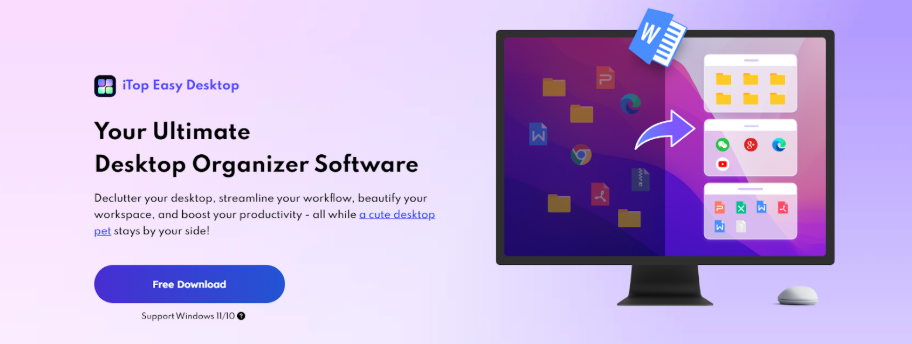

A better desktop is not only cleaner — it’s also more efficient. It also feels personal, easy to read, and pleasant to spend hours with. When your screen is crowded with random icons and mismatched visuals, even simple tasks start to feel heavier than they should.
iTop Easy Desktop helps turn that experience around by giving Windows a more organized structure, a more polished look, and a few practical tools that make the whole workspace feel more like your own.
What iTop Easy Desktop Is
iTop Easy Desktop is a desktop organizer software for Windows, with V4 built for Windows 11 and Windows 10, while older systems such as Windows 8.1, 8, and 7 can use V3.2. It is designed to declutter the desktop, organize workflow, and give users more control over how their workspace looks and behaves.
It also runs locally on the PC, keeps files on the device instead of sending them to servers, and is built to stay lightweight with minimal system resource use. If you ever want to undo the changes, you can return the desktop to its original state with a single click.
Product features that make personalization feel real
The strongest part of iTop Easy Desktop is that it does not treat personalization as wallpaper only. It changes the layout, the navigation flow, and the visual style of the desktop at the same time.
Smart layout with boxes and auto organization
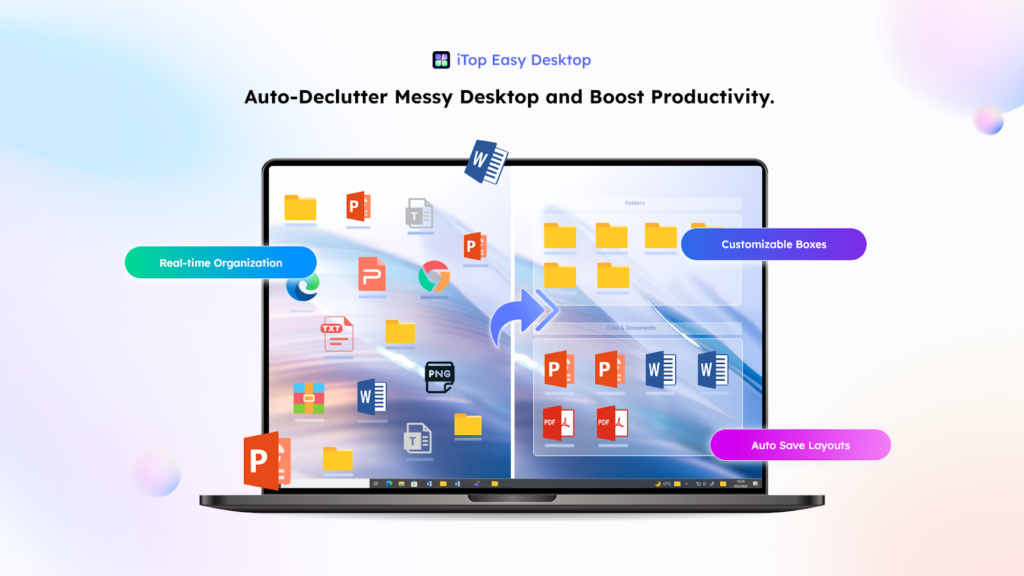
The first step is clearing the mess. iTop Easy Desktop includes 1‑Click Auto‑Organization, which sorts desktop icons into intelligent groups such as Documents, Images, Applications, and Folders.
Once the desktop is under control, you can go further with Personalized Box Organization. That means creating your own boxes such as “Urgent,” “Client,” or separate areas for work, gaming, and personal files. Instead of forcing everyone into the same layout, it lets each person shape the screen around how they think and work.
A complete visual refresh
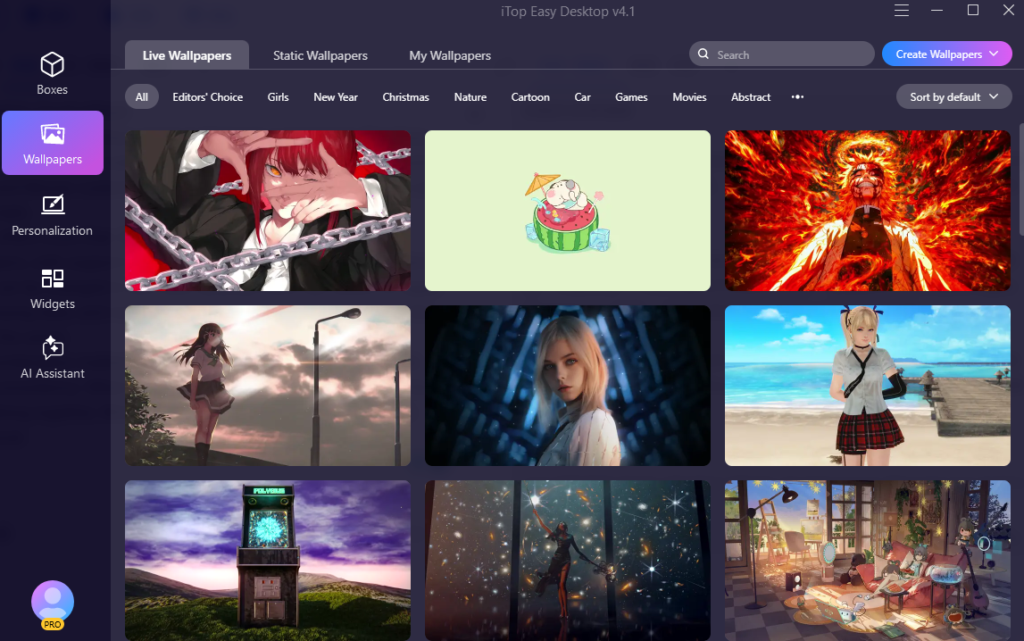
This is where the interface starts to feel truly customized. iTop Easy Desktop includes live wallpapers, themed packs, Start Menus, Desktop Icons, and Mouse customization, so the whole system can follow one visual style.
It also offers more than 20,000 high‑definition live and static wallpapers, with support for 4K and 8K video wallpapers. Start Menu styles can be changed in one click, desktop icons can switch to Apple or Samsung style, and mouse cursors can be refreshed to match the rest of the setup.
That combination matters because good personalization is usually about consistency. When the wallpaper, icons, and cursor all feel like they belong together, Windows looks less generic and much more intentional.
Faster access without visual clutter
A personalized desktop should also be easier to use, not just nicer to look at. iTop Easy Desktop includes a built‑in search bar that helps you find files and folders by typing the name instead of manually scanning a crowded screen.
It also includes Discover New Files, which marks recently added files with a red spot so they are easier to notice and sort into the right place. This keeps the desktop from slowly sliding back into chaos after a few busy days.
Useful tools that live on the desktop
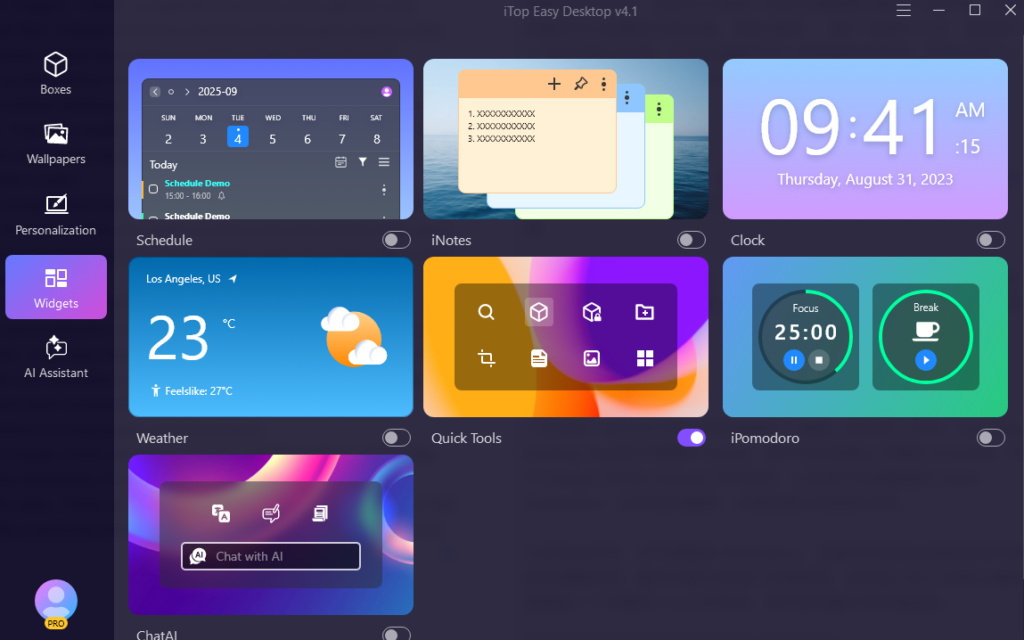
Part of personalization is bringing the tools you actually use into your daily view. iTop Easy Desktop includes iNotes for reminders, Schedule for tasks and deadlines with Google Calendar and Outlook Calendar sync, and Quick Screenshot for fast captures, including scrolling screenshots for long pages and documents.
It also includes Clock, Weather Forecast, and iPomodoro, which help with time awareness, focus, and daily planning without opening separate apps. These are the small touches that make the desktop feel more like a personal workspace than a dumping ground for shortcuts.
Small features that improve the daily experience
Some of the best personalization features are not flashy. Double‑Click Hide Everything lets you instantly hide all boxes and clear the screen — especially useful for screen sharing or moments when you want a clean view fast.
Auto Save Layouts gives you a reliable snapshot of your preferred arrangement, so you can return to the layout you like instead of rebuilding it from scratch. Folder Portal gives direct access to important folders right from the desktop, almost like a mini File Explorer built into the workspace.
Private Box adds password protection for important photos, videos, and documents, which helps if you want the desktop to stay personal without leaving sensitive files exposed.
Personality on top of productivity

For users who like a desktop with a little charm, PawPal adds a desktop pet that can accompany you while you work. It is a small detail, but it helps the environment feel less cold and more personal.
How to use iTop Easy Desktop
Getting started is simple because the workflow is built around a few quick steps.
- Download and install desktop organizer software from the official page for your Windows PC.
- Run 1‑Click Auto‑Organization so your scattered icons are grouped into a cleaner structure right away.
- Create your own boxes for the way you work, such as Projects, Bills, Reading, Designs, or Personal.
- Turn on the tools you actually need, such as iNotes, Schedule, Quick Screenshot, Clock, Weather Forecast, and iPomodoro.
- Finish by choosing a visual style with wallpapers, themed packs, Start Menu changes, icon sets, and cursor options — so the whole desktop matches your taste.
Who needs it most
This kind of setup is especially useful for people who spend a large part of the day in front of a Windows PC. Remote workers, freelancers, students, creators, and office users all benefit from a cleaner layout and faster file access.
It also works well for multi‑monitor users because the software supports multiple screens, and boxes plus Folder Portal can be arranged across them. If your desktop tends to fill up with downloads, screenshots, drafts, and client files, the difference becomes noticeable very quickly.
Closing thoughts
Personalization works best when it solves real annoyances, not when it only changes the wallpaper. iTop Easy Desktop does both sides well by organizing files into boxes, improving
search and access, adding practical widgets, and refreshing the whole visual style of Windows with wallpapers, icons, menus, and cursors.
The result is a workspace that feels calmer, more useful, and much more personal from the moment you use it.